Switching Between Screen Mirroring and Samsung DeX
When you connect your S8 or S8+ to DeX, you have the option of using your phone like a desktop computer or just using it to screen mirror. This is great when you have a lot to say, but don't want to torment yourself by thumbing it out on your phone. And if you just want that goofy cat picture to show up on your monitor, use Screen Mirroring to do it.

Available screens and settings may vary by wireless service provider and software version.
Switching to Samsung DeX
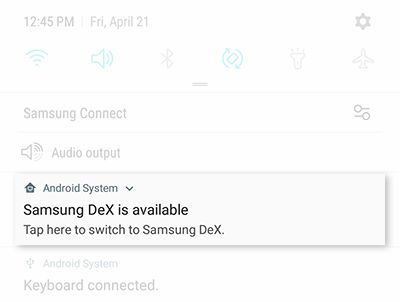
From your mobile device, open the Notification panel by swiping down from the top of the screen.
Touch the Android System notification to switch to Samsung DeX.
When you need to use more than your thumbs to type, connect your monitor, keyboard, and mouse to the DeX Station and switch to Samsung DeX.
Switching to Screen Mirroring
With a couple of clicks on Samsung DeX, you can return to Screen Mirroring.
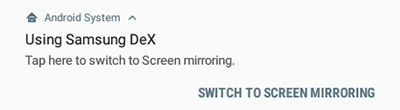
From the DeX desktop, click Android System.
Click SWITCH TO SCREEN MIRRORING.

Other answers that might help
How would you like to contact us?
 1-800-SAMSUNG
(1-800-726-7864)
1-800-SAMSUNG
(1-800-726-7864)
-
Social Support
Contact us on Twitter or Facebook and we'll reply with an answer to your question or issue.
-
Ask the Community
Browse answers, ask questions and get solutions from other Samsung customers.
-
Chat with us
Live Chat support with a Samsung product expert.
-
Send us an Email
We’ll respond within 24 hours of your request.
 /samsungsupport
 @samsungsupport